How to Sync a Gmail Calendar on iPhone (iOS 18)
If you've added a Gmail account for email but your Google Calendar events aren't showing up, here's how to enable calendar syncing.
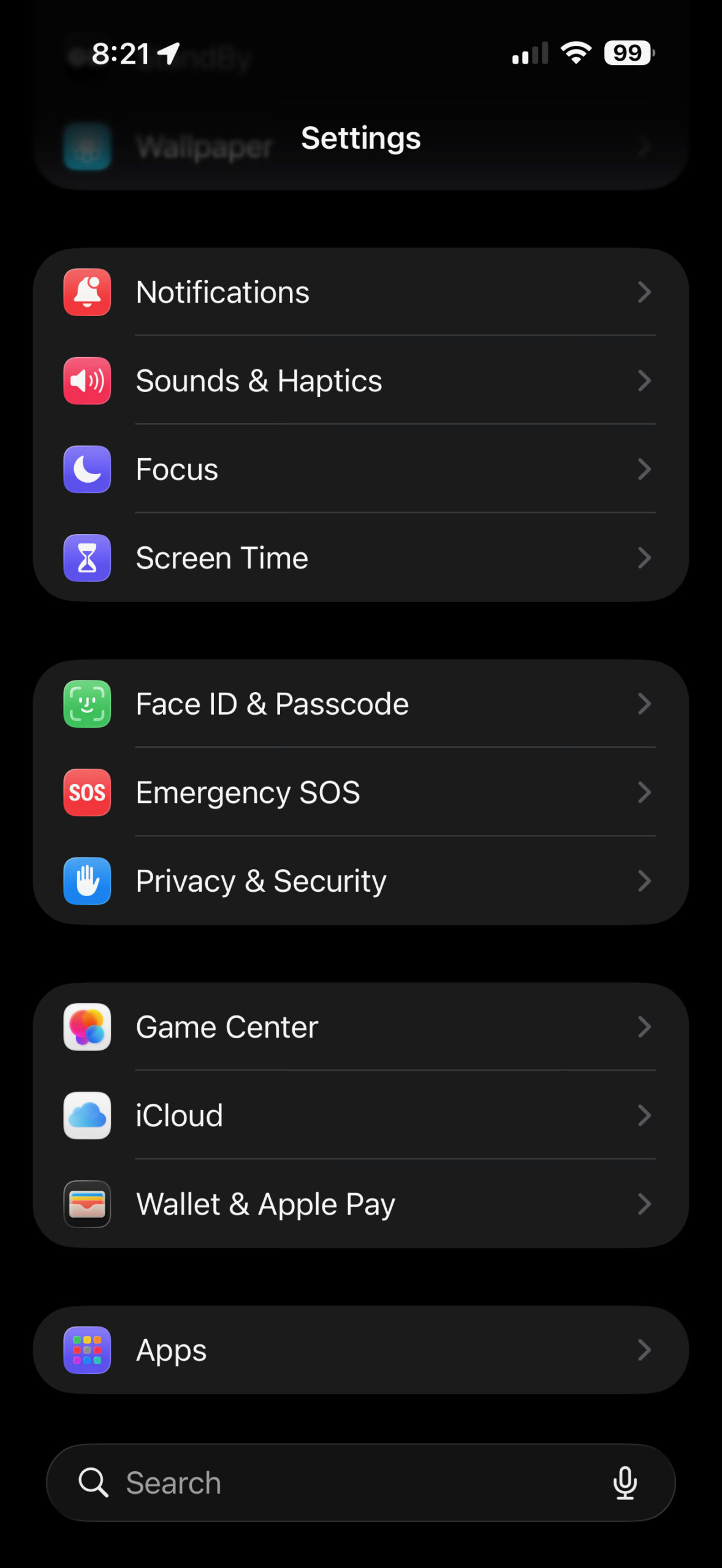
Step 1: Open Settings and tap Apps
Scroll down in Settings until you see Apps near the bottom. This is new in iOS 18—Apple moved app-specific settings here.
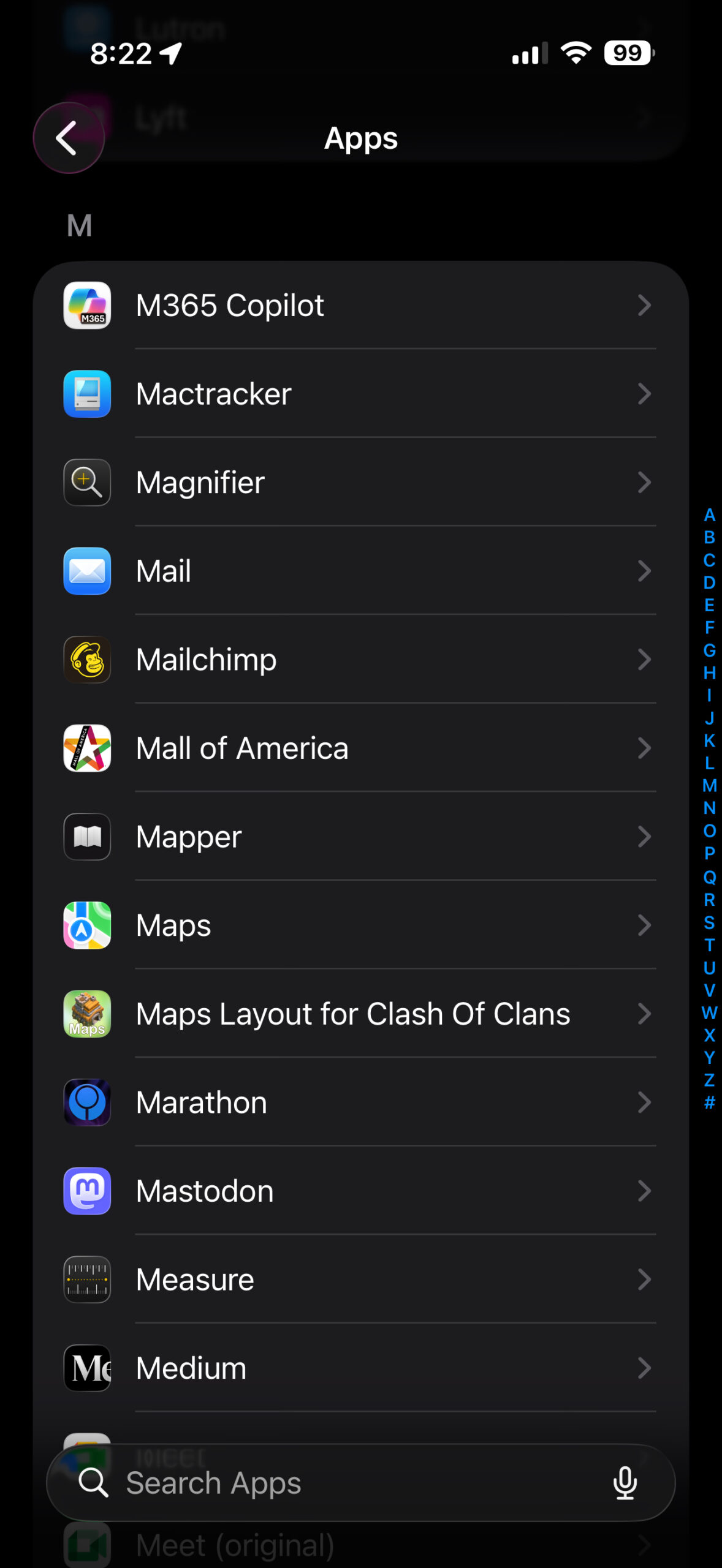
Step 2: Find and tap Mail
The apps are listed alphabetically. Scroll to Mail and tap it. You can also use the Search bar at the bottom or the letter index on the right.
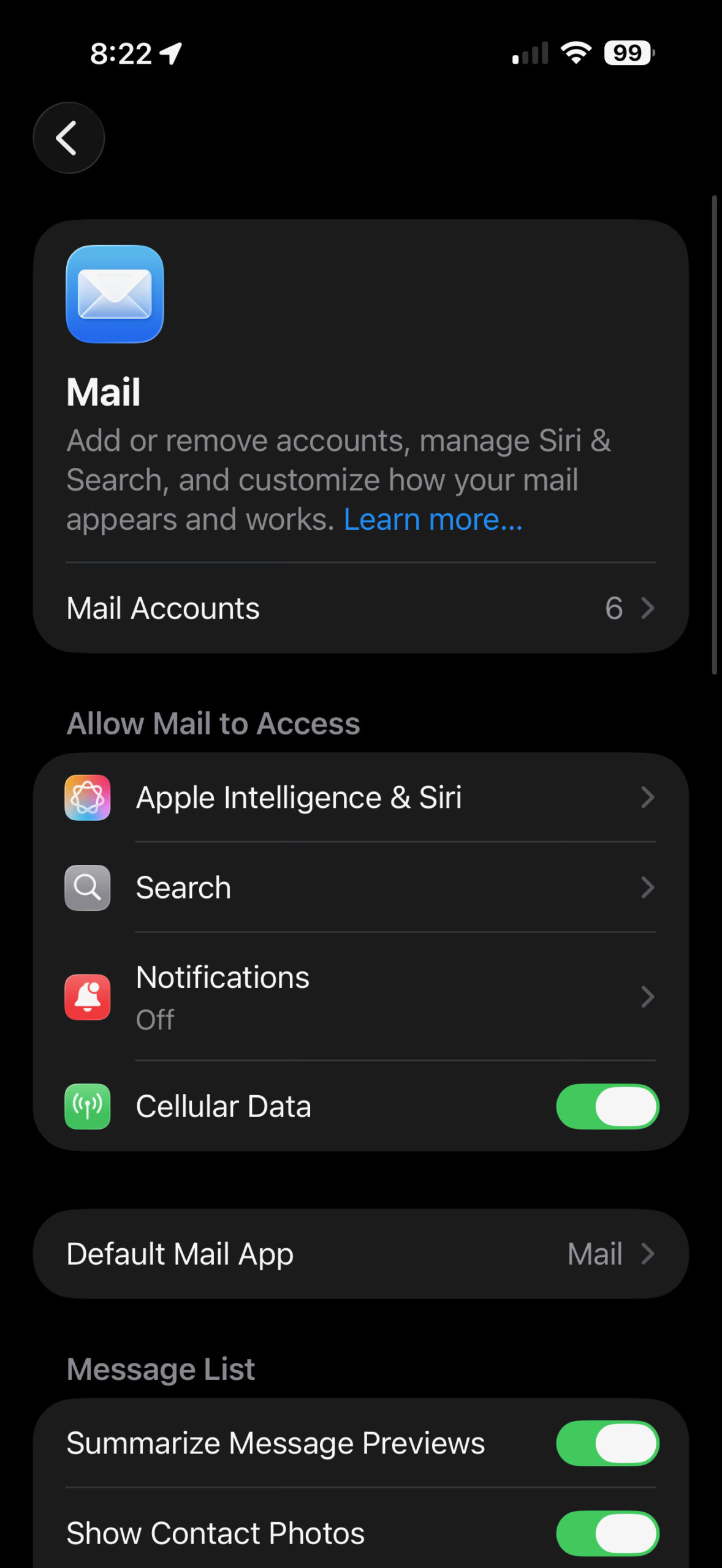
Step 3: Tap Mail Accounts
At the top of the Mail settings, tap Mail Accounts. This shows all email accounts connected to your iPhone.
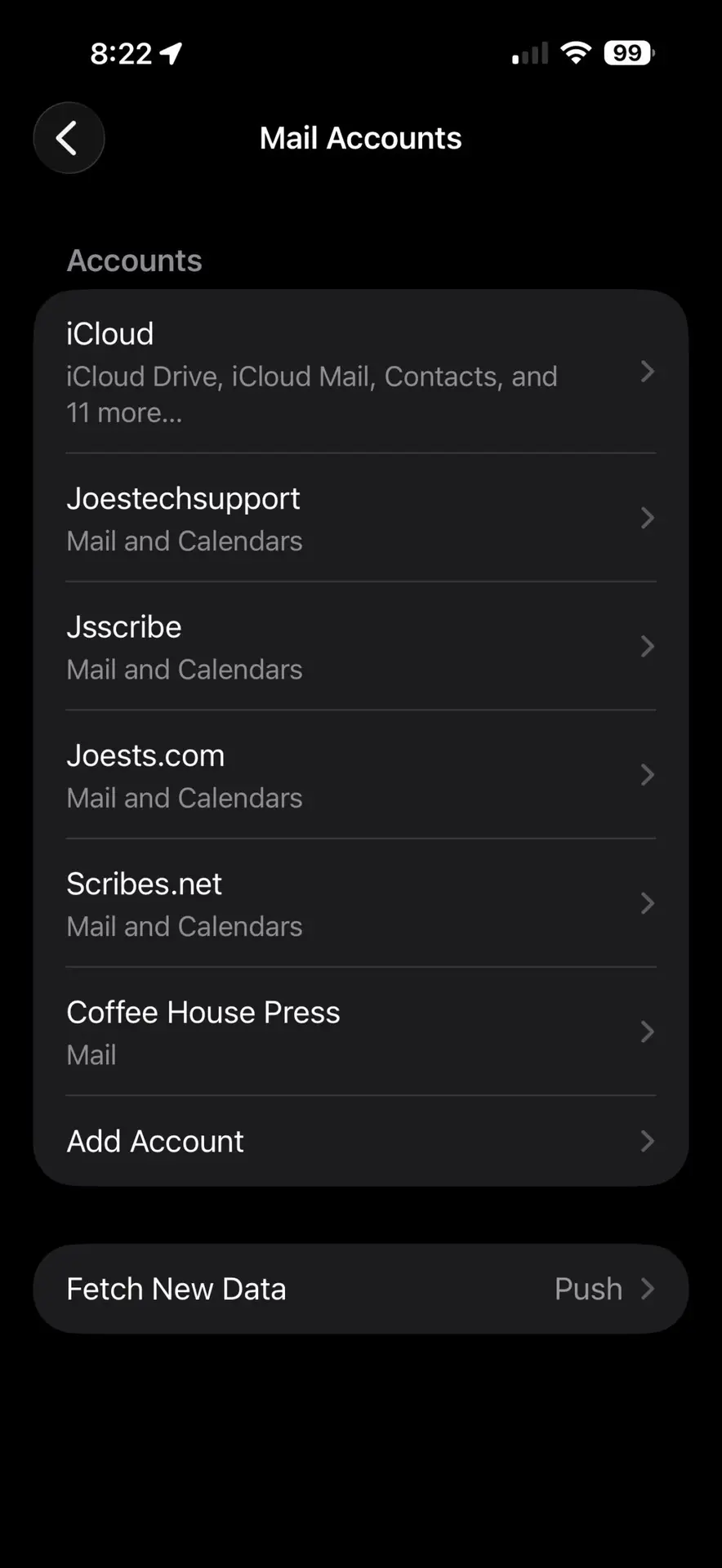
Step 4: Select your Gmail account
You'll see a list of all your accounts. Tap the Gmail account you want to sync calendars from. If it's not listed yet, tap Add Account to add it first.
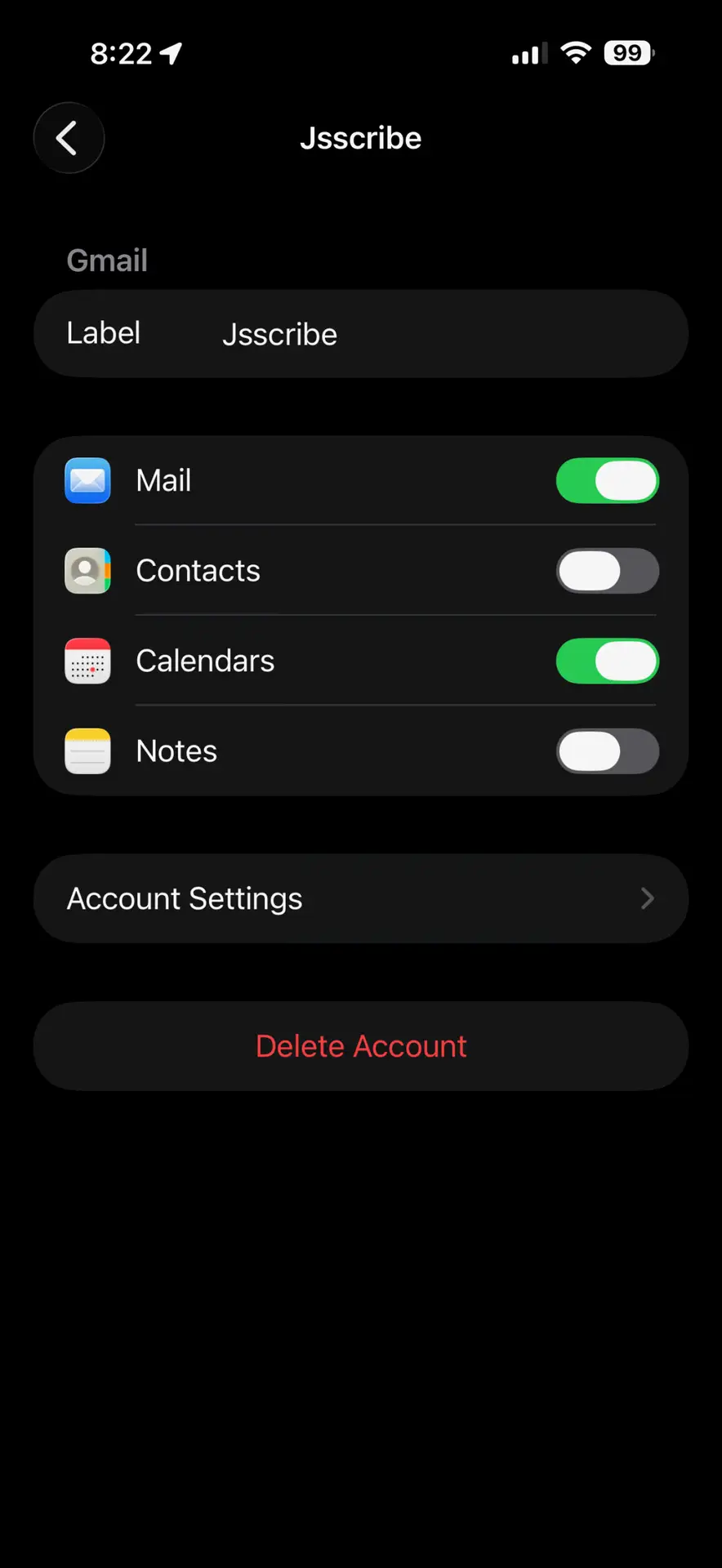
Step 5: Turn on Calendars
Toggle Calendars to the green ON position. Your Gmail calendar events will begin syncing to the iPhone Calendar app.
Open your Calendar app, and you should see events from the mail account. If they don't appear immediately, give it a minute to sync.